
To enforce the same rules across projects a set of templates can be managed:
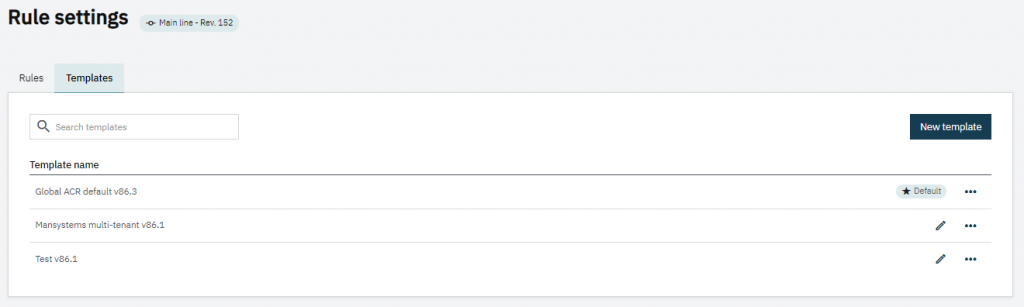
New
Creating a new template copies the settings of the currently selected project to a new template.
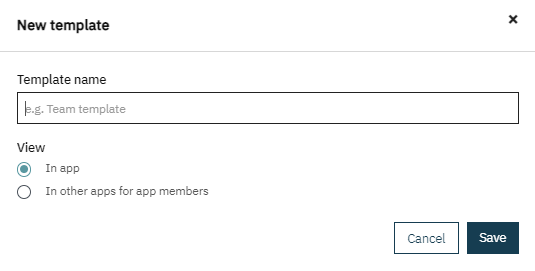
Besides the global template that ismanaged by us, you can specify templates to be seen:
- In the current project only;
- In other projects, this user has access to. This allows for example to create a container/dummy app for a Mendix partner and invite all Mendix partner employees in this project and maintain the defaults for this Mendix partner here. Just like the global settings, any member of a project can view the defaults, but only members of the container project can change the default from within the container project.
Please read the following how-to: Creating a single rule template to use in multiple apps. If you want to know more about using a single rule template across multiple applications.
Edit
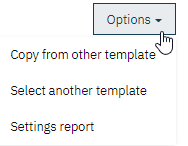
If you have permissions to edit the default you can:
- Edit name and view
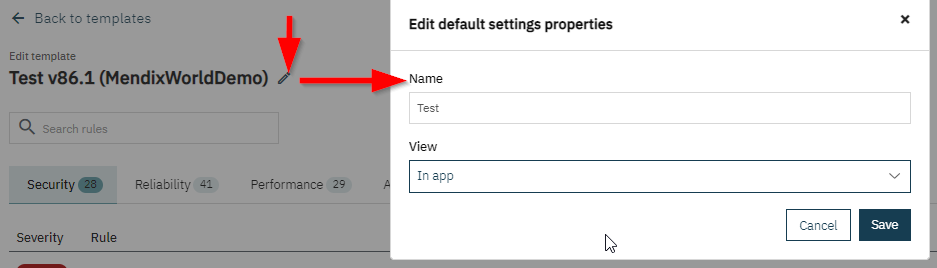
And of course, you can manage all the rule settings for this default.
Select
From the default overview, you can select a default for this project. This links the project to this default and compares the project rule settings to the default rule settings. This does NOT however change the project rule settings.

To apply the selected defaults you need to ‘Reset to defaults’ on the rules tab (under options).